Updated September 22, 2026
How ServeToro Collects SMS Consent
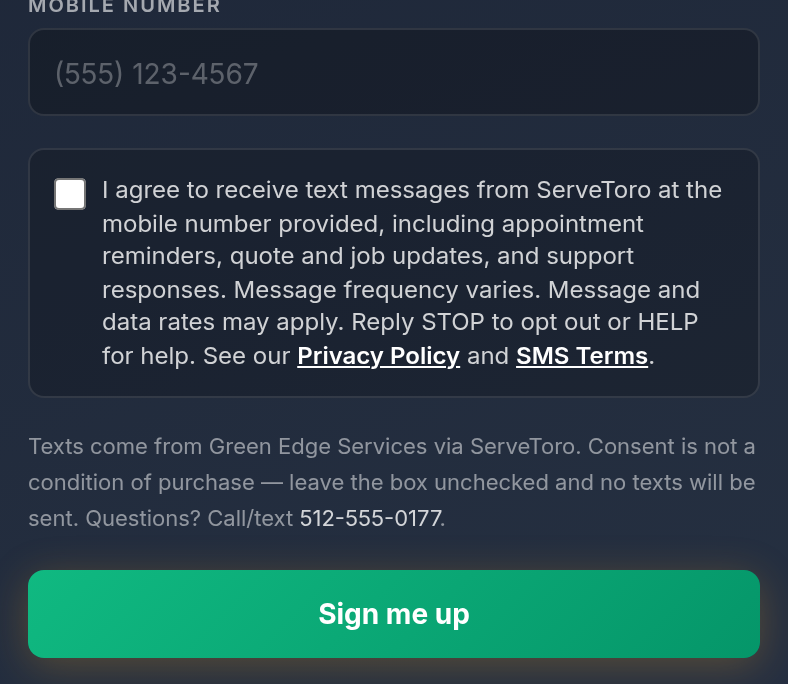
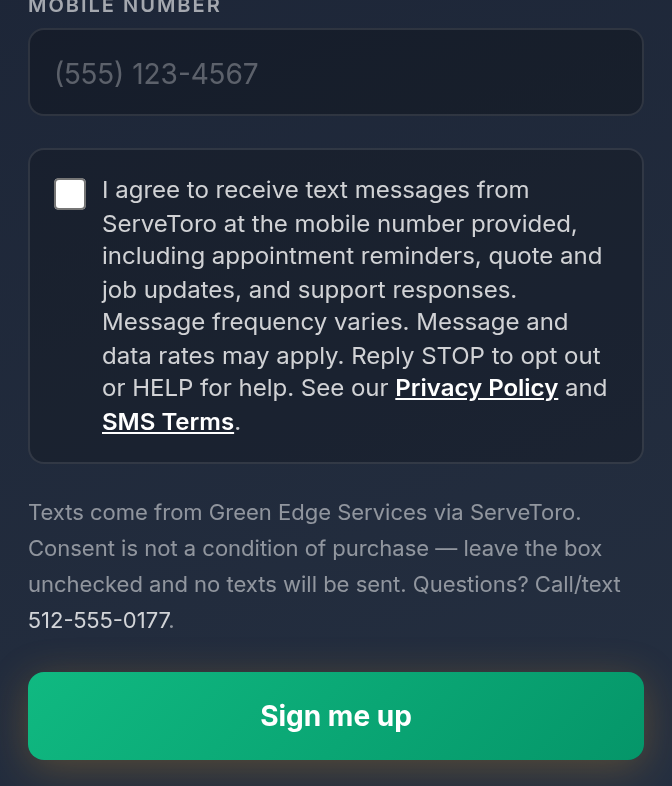
ServeToro is a field-service platform. We only send text messages to mobile numbers whose owner has given explicit, recorded consent. This page documents every place a mobile number is collected and shows the exact consent control presented at each one. Some of these screens are only visible after logging in, so we publish them here as evidence for carriers and messaging partners.
The consent control — same rules everywhere
- A single checkbox that is unchecked by default and never pre-checked.
- Separate from the Terms of Service checkbox and from any email/marketing checkbox.
- Never required — every form can be completed with the box left unchecked. The record then stores
sms_consent = false. - Each record stores:
sms_consent,sms_consent_timestamp,sms_consent_method,sms_consent_ip(where available) and the consent language version (currently2026-09-22.v2). - Our messaging service checks for
sms_consent = truebefore every send and logs a blocked attempt when consent is absent.
Opting out and getting help
Reply STOP to any message to opt out — consent is set to false immediately, a confirmation is sent, and no further messages are delivered. Reply START to opt back in (consent is set to true and confirmed). Reply HELP for program information or email support@servetoro.com. Message frequency varies. Message and data rates may apply.
Opt-in methods
1. Public web sign-up (servetoro.com/signup)
Stored as sms_consent_method = web_signup
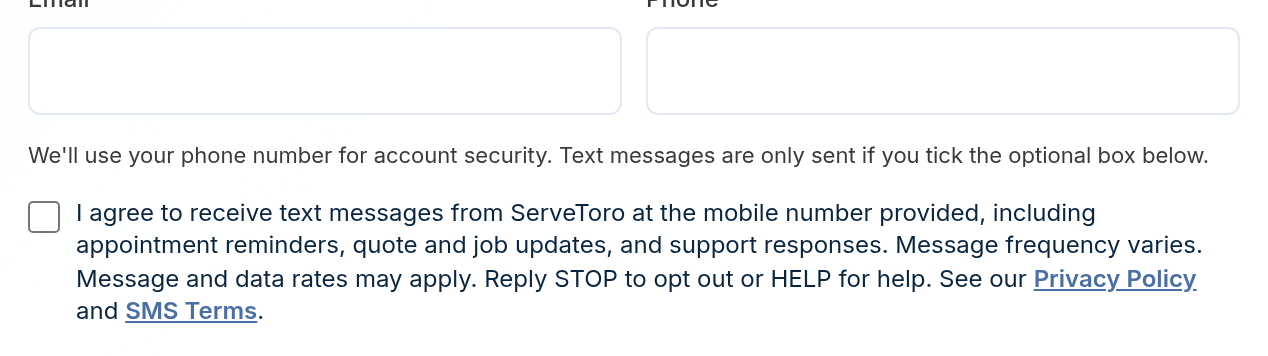
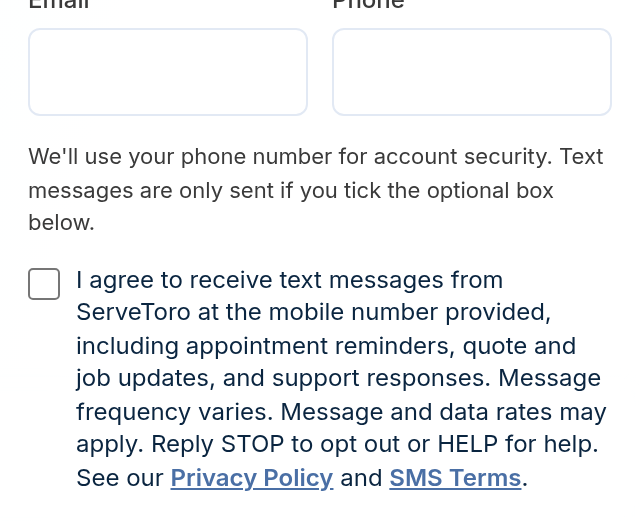
When a business owner creates a ServeToro account, the sign-up form asks for a phone number for account security. Directly beneath it is a separate, unchecked SMS consent checkbox. The account is created whether or not the box is ticked; a welcome text is sent only when it is.
2. In-app account settings (Settings → Company)
Stored as sms_consent_method = account_settings
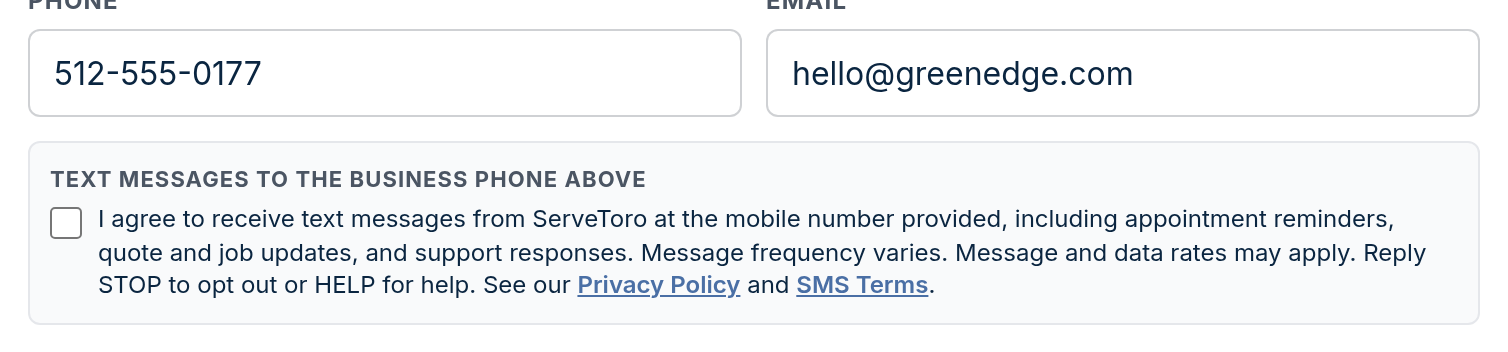
Owners and admins can update the business mobile number in Settings. The SMS consent checkbox sits directly under the phone field, is unchecked by default, and is stored separately from every other setting.
3. User / technician profiles (Employees)
Stored as sms_consent_method = account_settings
When an owner adds or edits a team member, the profile form captures the technician's mobile number with its own unchecked SMS consent checkbox. Staff can be saved without consent; job-alert texts are only sent to numbers with consent recorded.
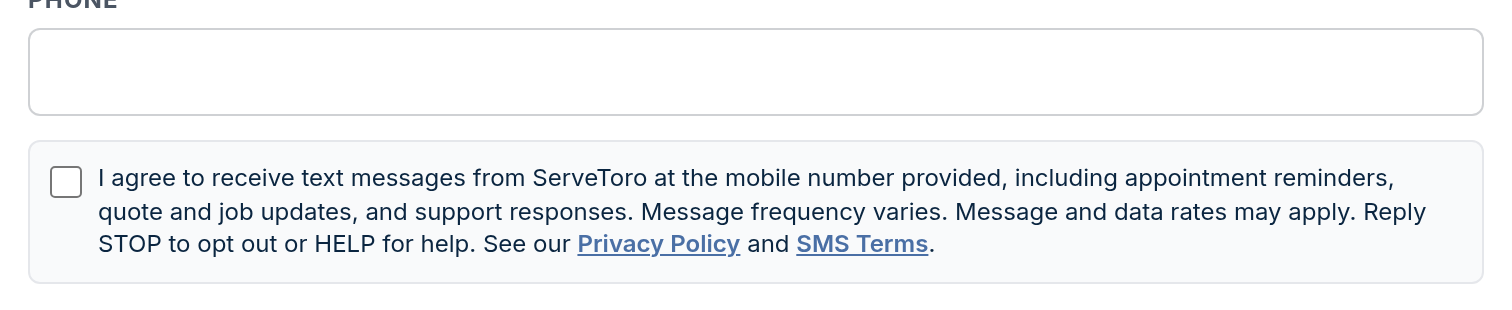
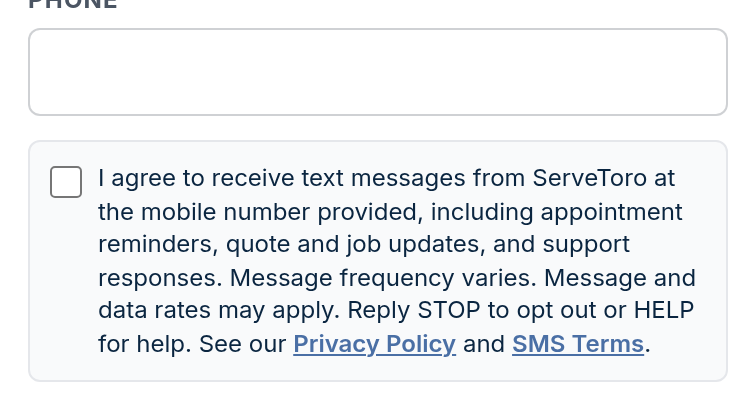
4. Customer records (Customers → New / Edit)
Stored as sms_consent_method = customer_record
Staff who enter a customer's mobile number see the same unchecked checkbox. It is ticked only after the customer has actually agreed (verbally on a call or visit, on a signed paper form, or on their own web form) and staff select how consent was obtained. The record stores who recorded it and when.
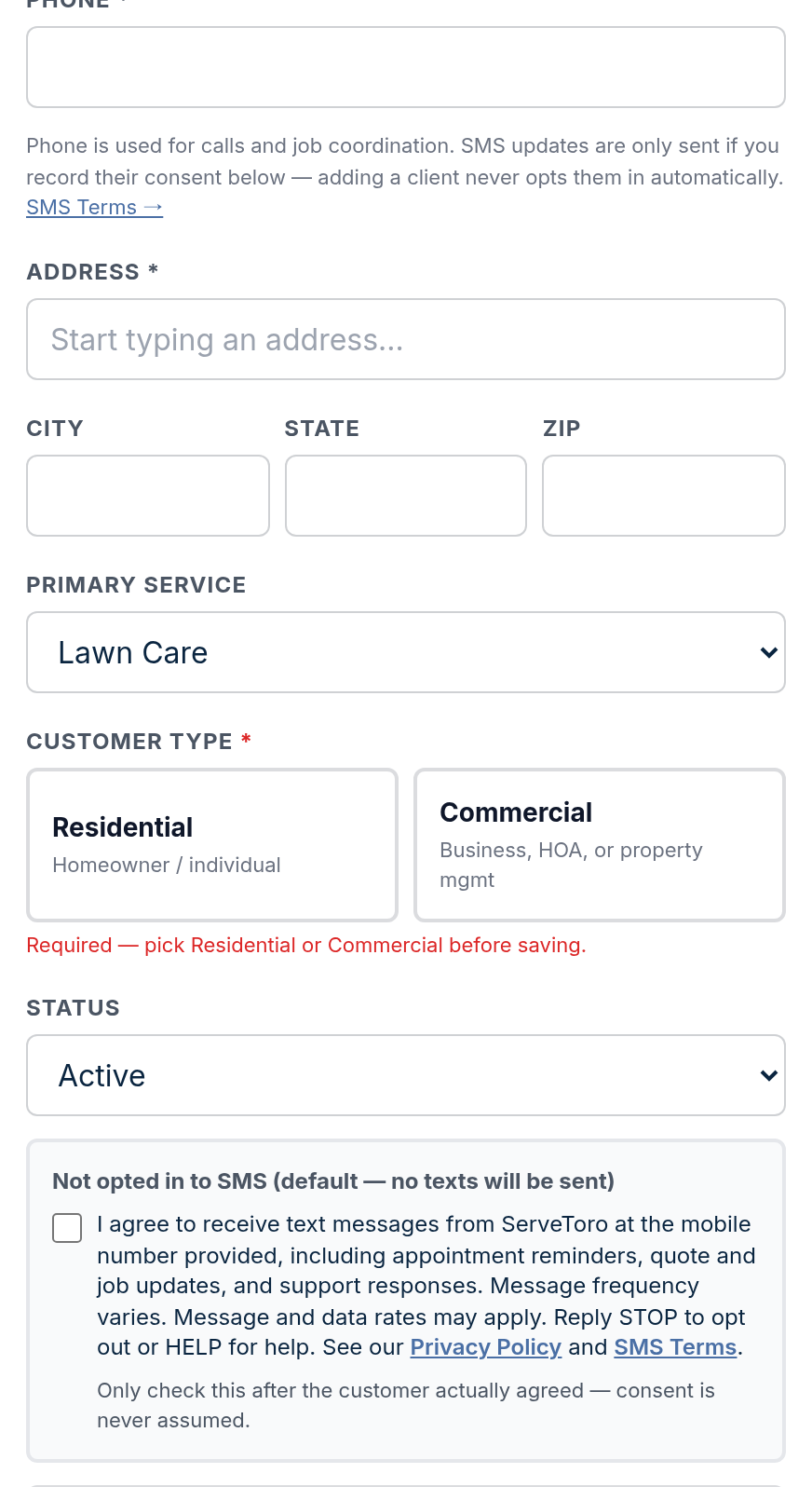
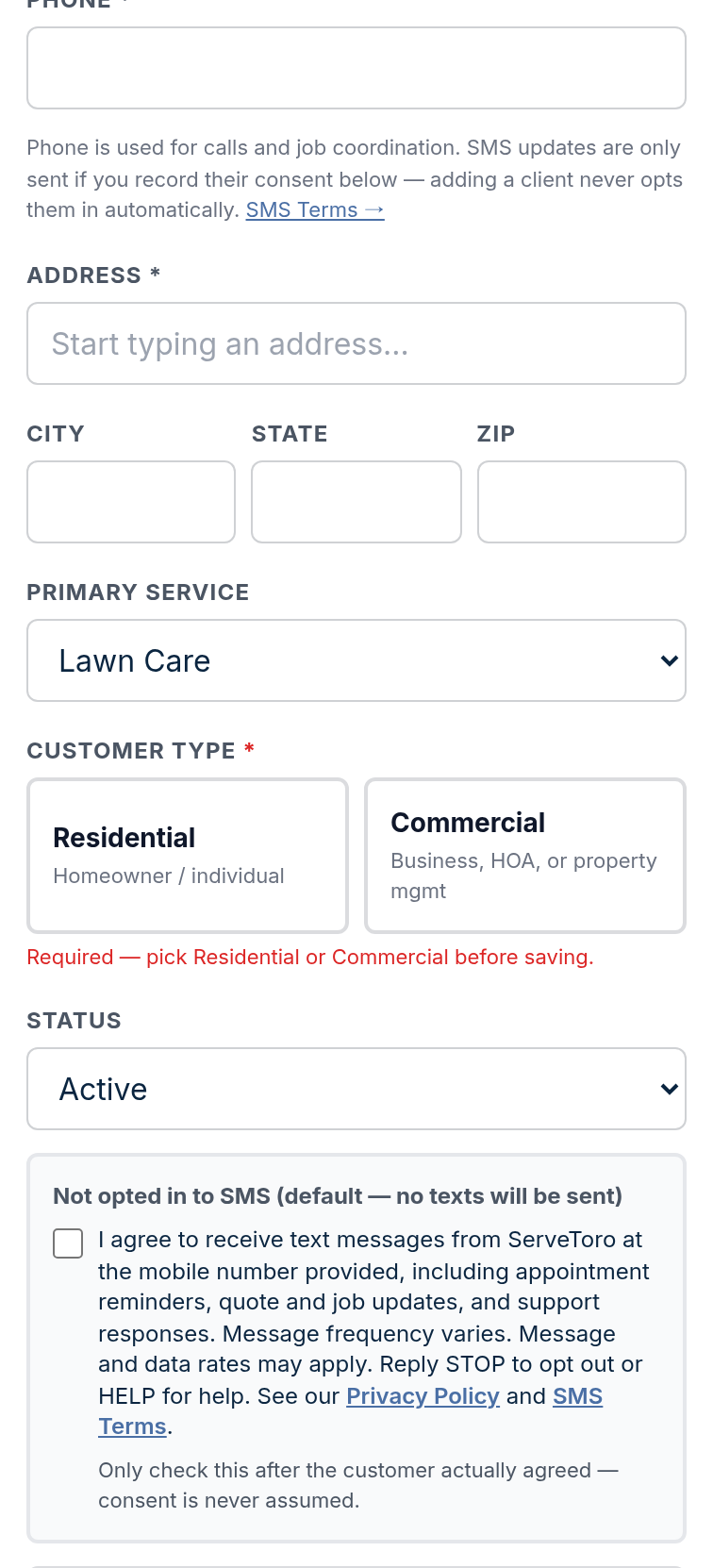
5. Customer-facing booking page (servetoro.com/request/…)
Stored as sms_consent_method = booking_page
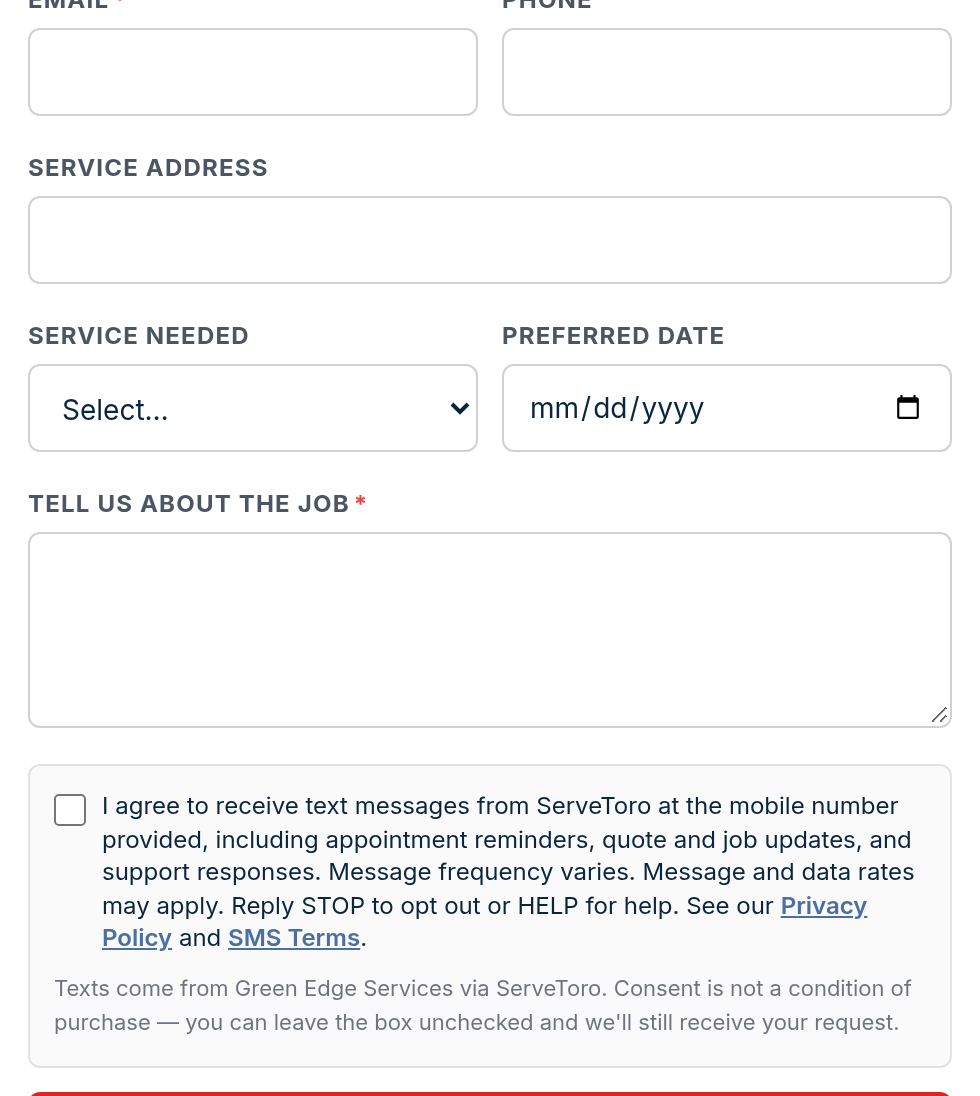
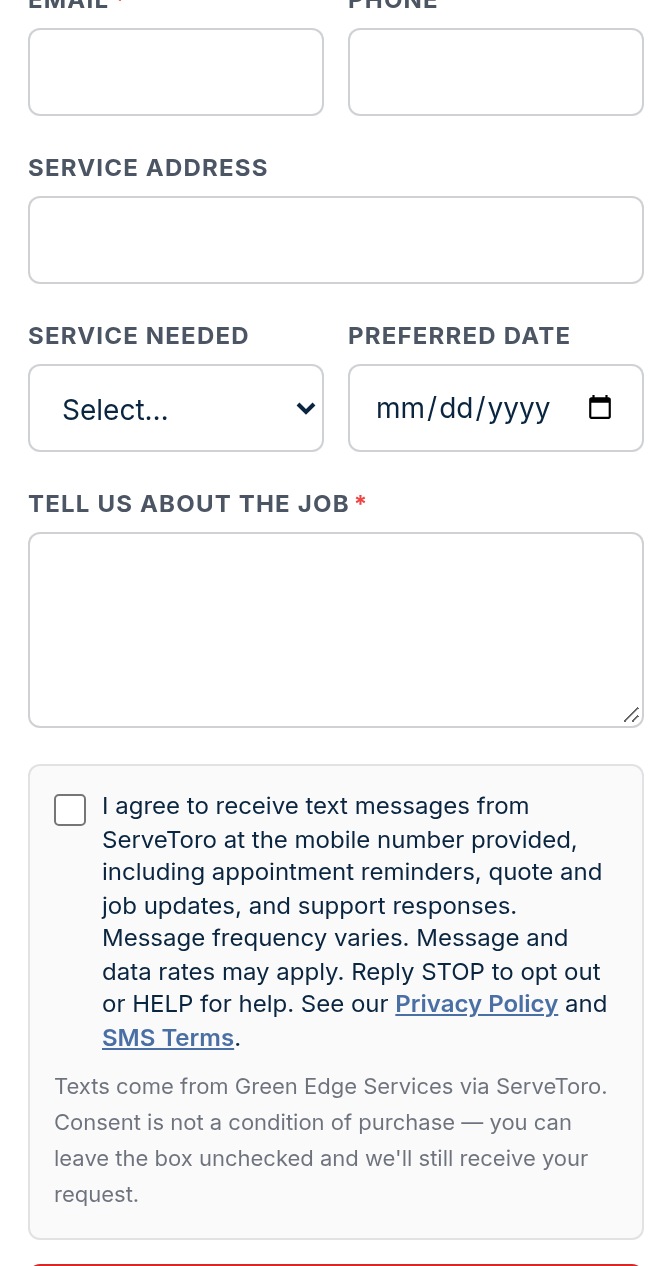
Prospective customers requesting service enter a phone number so the business can call back. The unchecked SMS consent checkbox is separate; the request is submitted either way and the record stores sms_consent = false when the box is left unchecked.
6. Embeddable lead form (servetoro.com/f/…)
Stored as sms_consent_method = booking_page
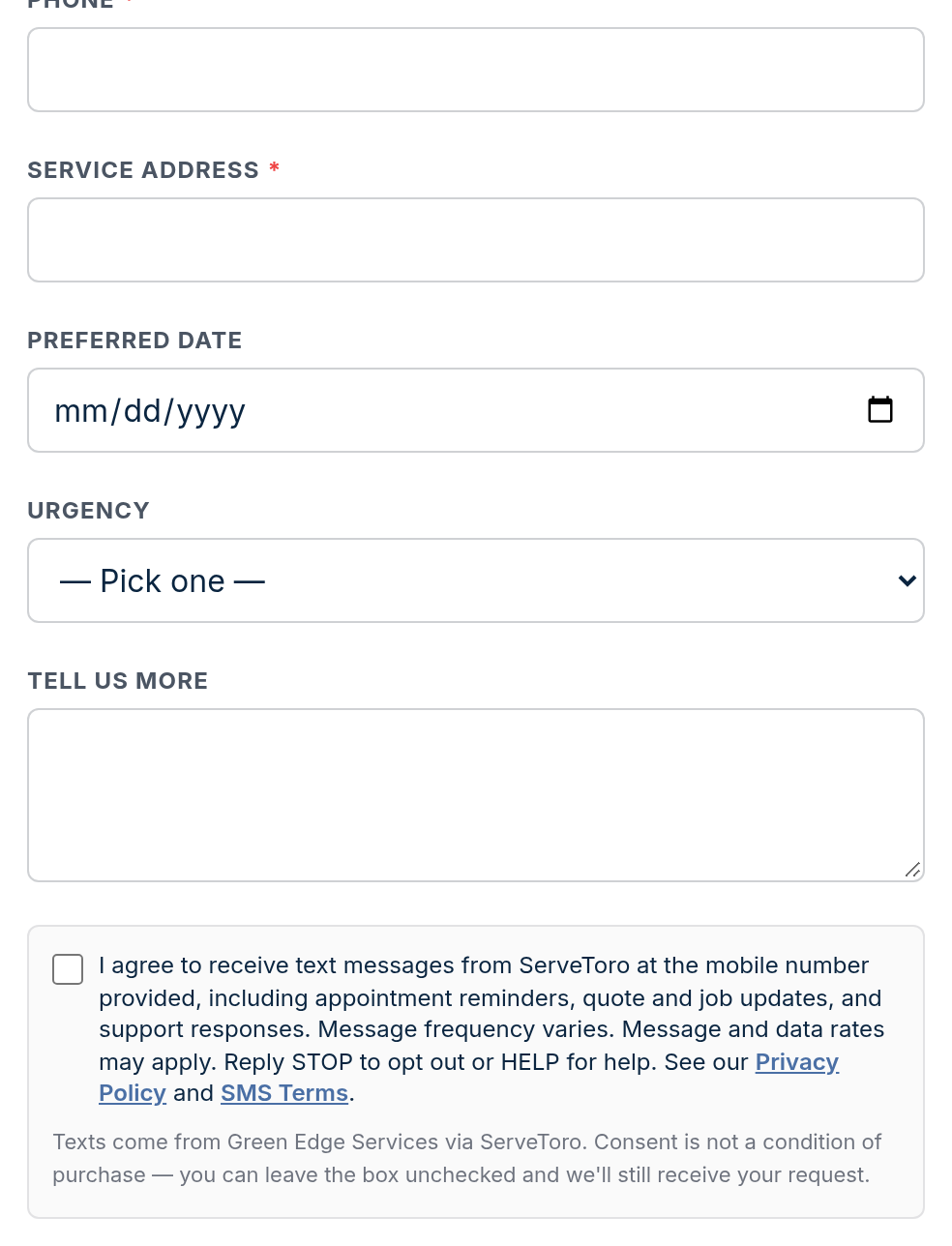
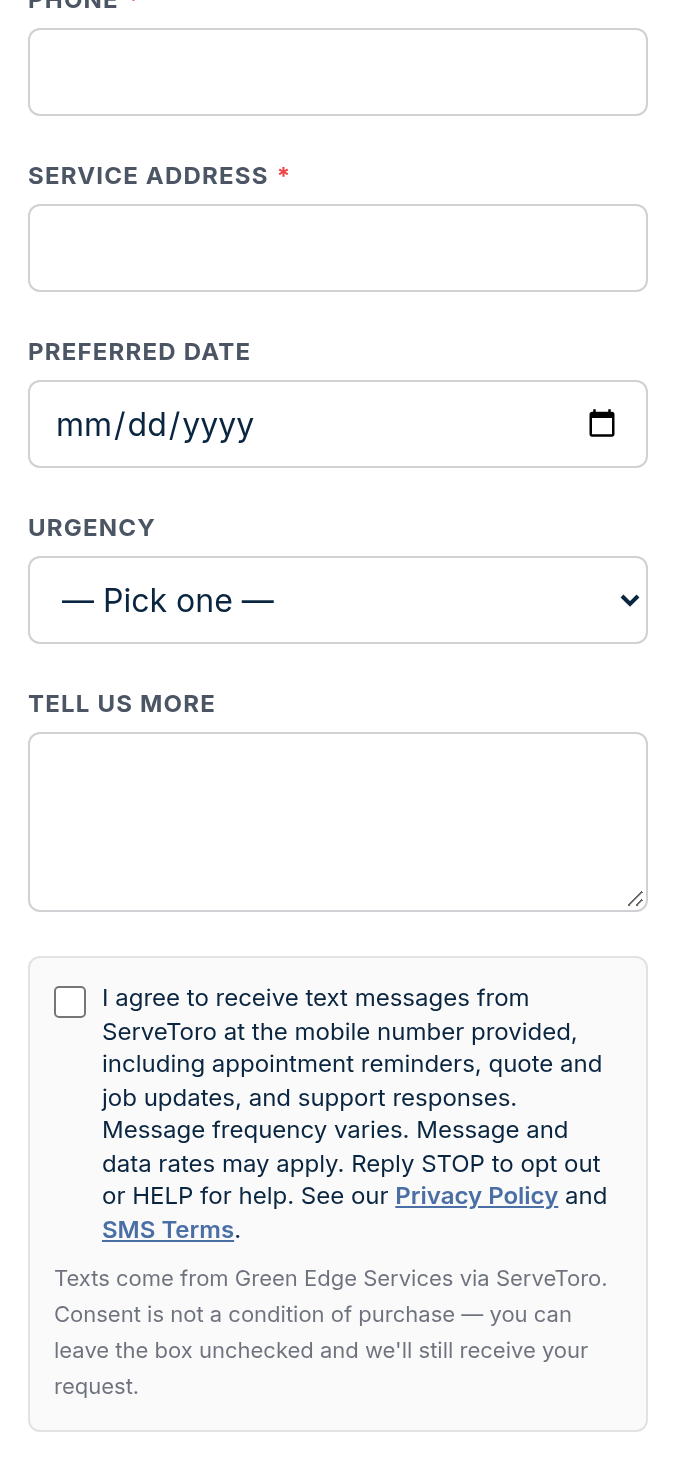
The lead form that businesses embed on their own websites shows the identical unchecked checkbox whenever the phone field is enabled.
7. Quote approval page (servetoro.com/quote/…)
Stored as sms_consent_method = approval_page
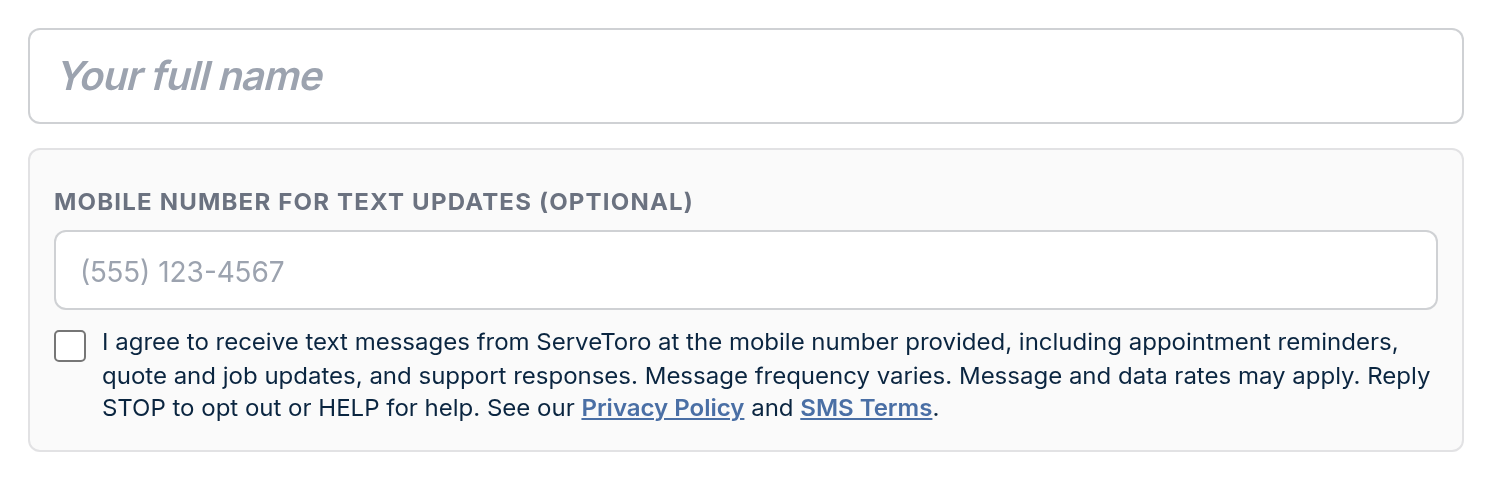
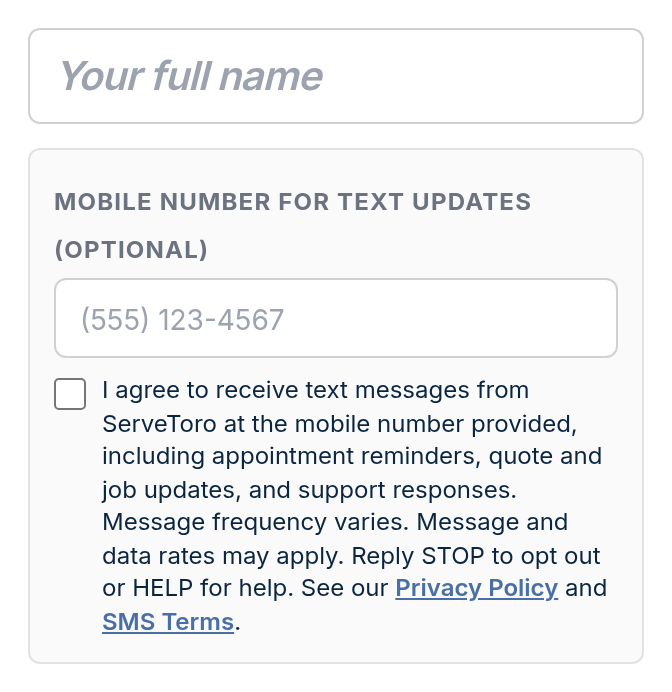
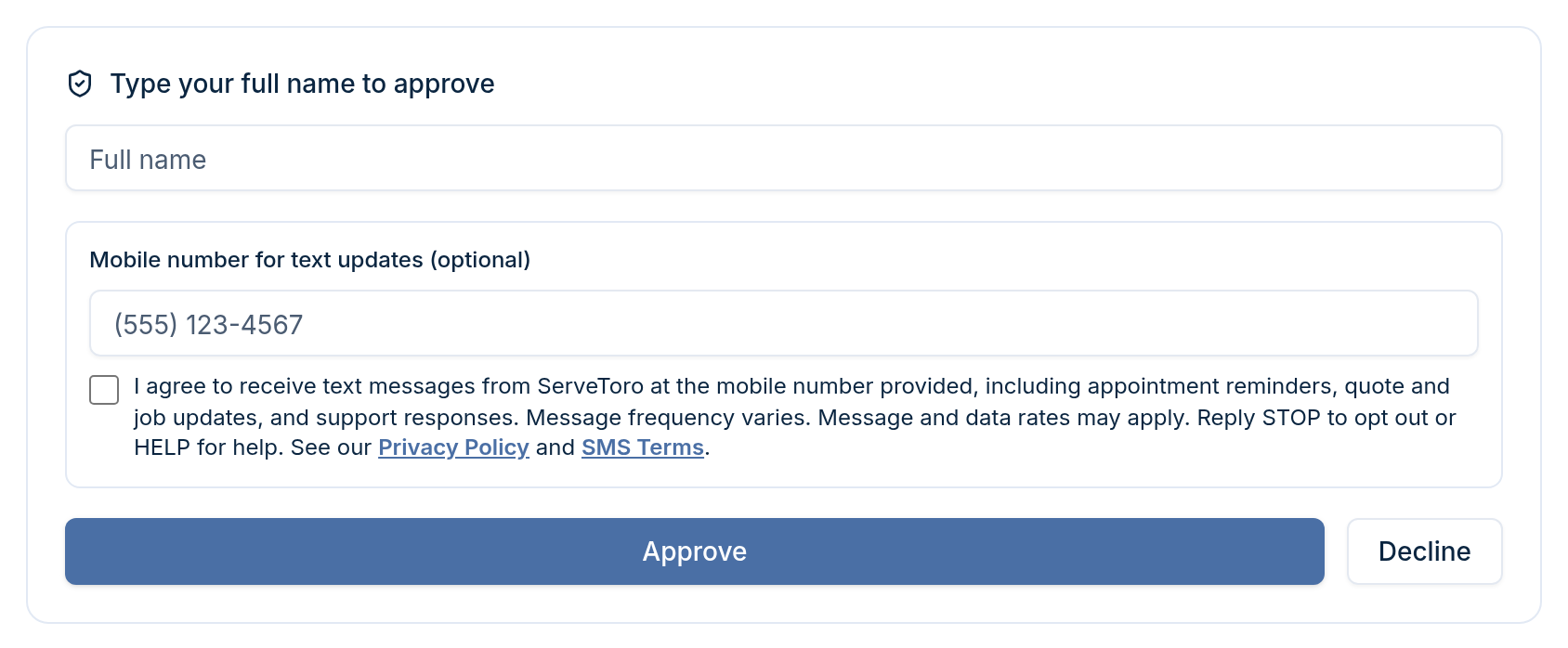
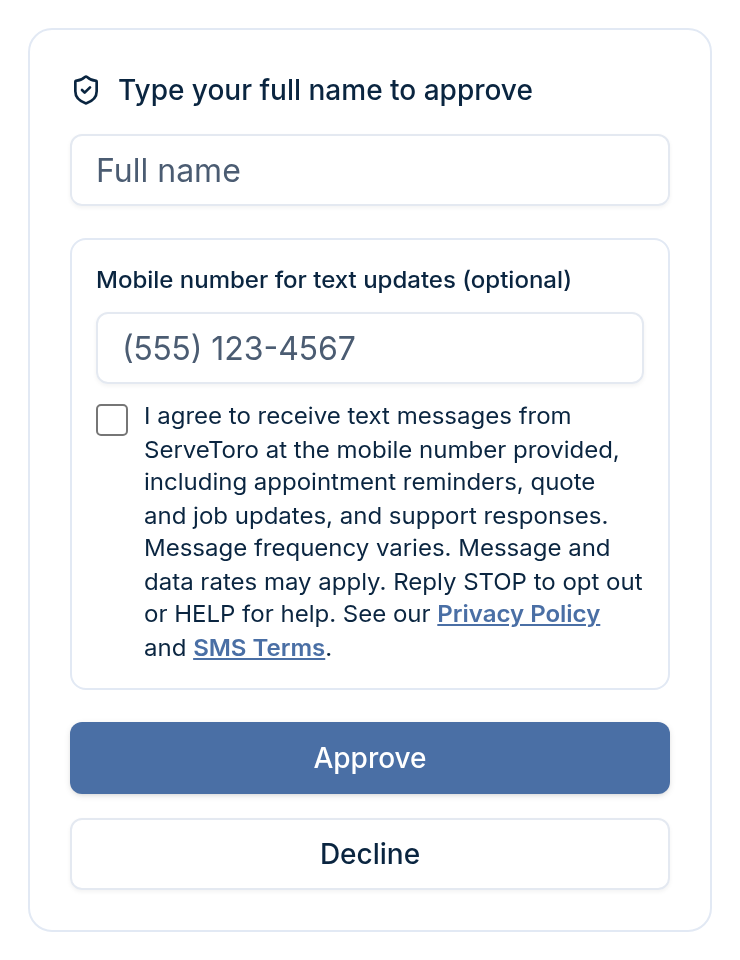
Customers approving a Quote may optionally add a mobile number for text updates. The consent checkbox is unchecked and separate from the quote terms acceptance; the quote can be approved without it.
8. Change order approval page (servetoro.com/change-order/…)
Stored as sms_consent_method = approval_page
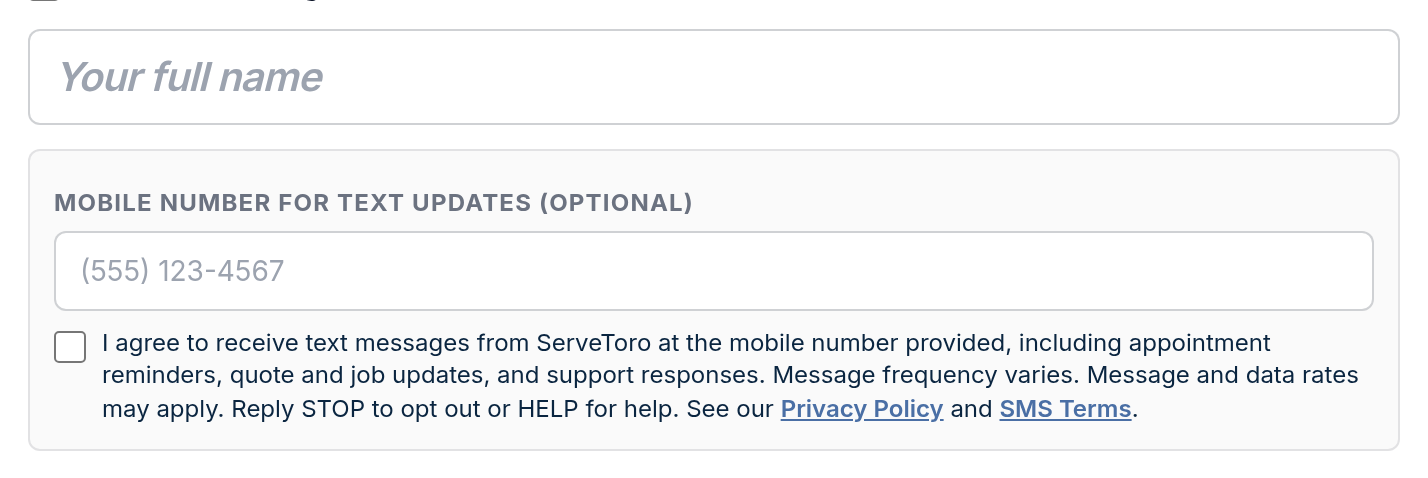
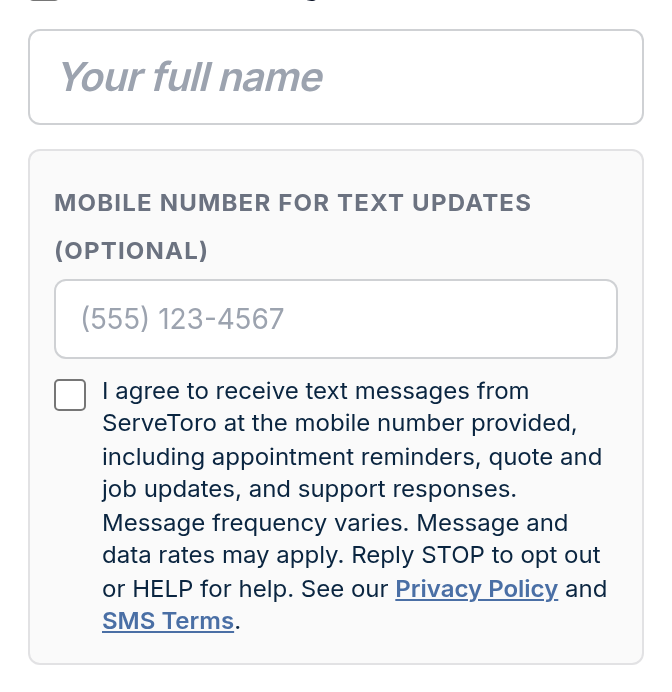
Same optional mobile-number field and unchecked consent checkbox as the quote approval page.
9. QuickQuote approval page (servetoro.com/quickquote-review/…)
Stored as sms_consent_method = approval_page
Customers choosing a Good / Better / Best option may add a mobile number and tick the separate consent box before approving.
10. QuickQuote — send for approval (technician app)
Stored as sms_consent_method = customer_record
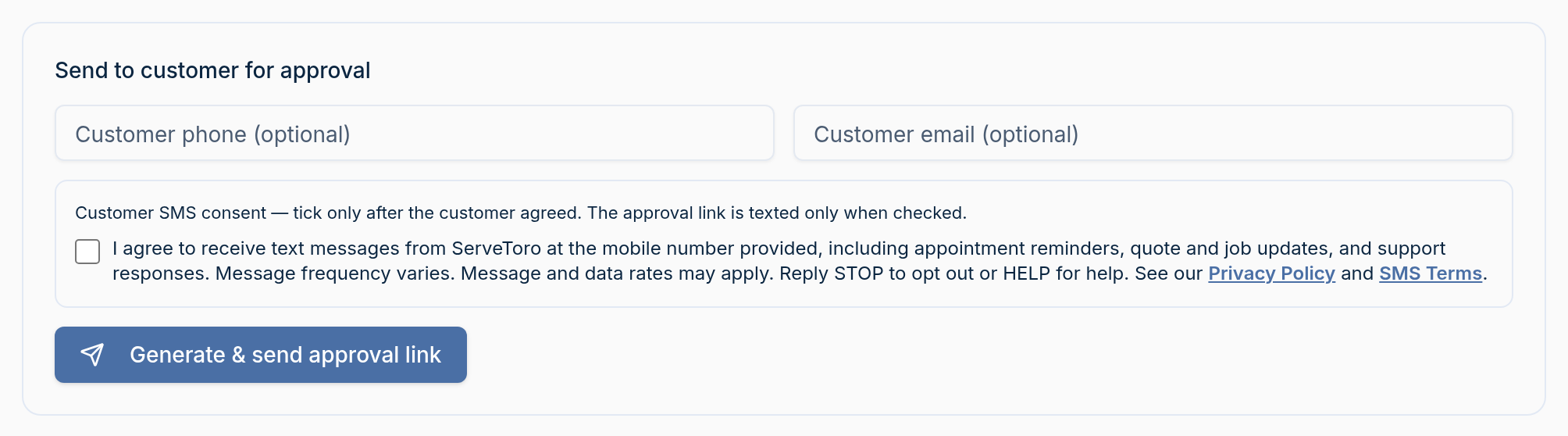
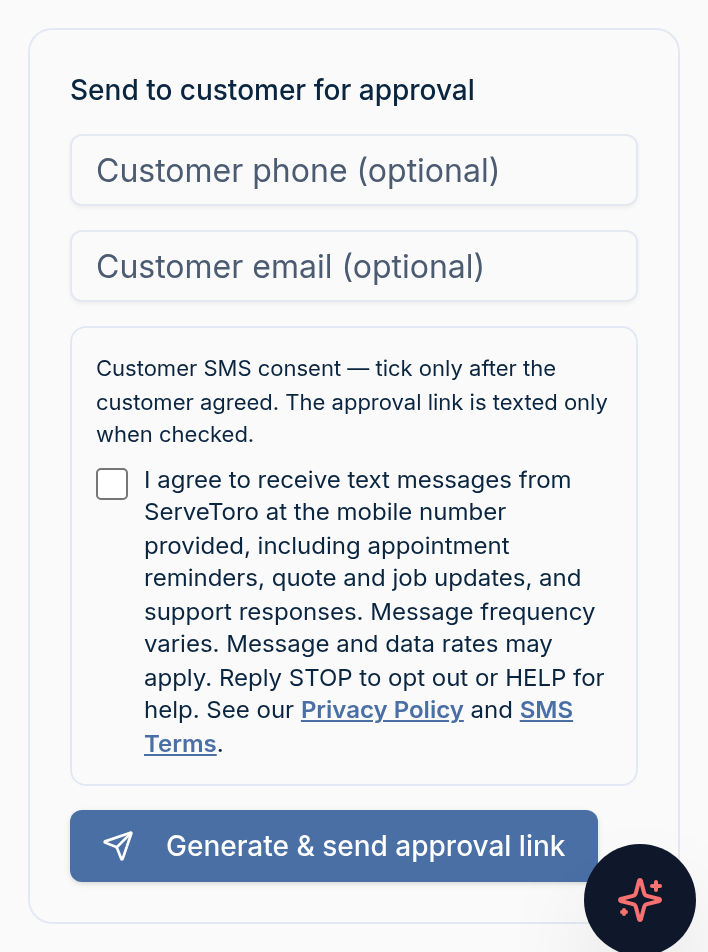
Before texting an approval link, the technician enters the customer's phone and must tick the consent checkbox confirming the customer agreed. Without it the link is generated for manual sharing and no text is sent.
11. QR / link opt-in page (servetoro.com/sms/…)
Stored as sms_consent_method = public_optin_page
Businesses can print a QR code that opens a dedicated opt-in page. Even here the consent checkbox is unchecked by default; submitting without it saves the number with sms_consent = false and sends no text.
ServeToro Tech mobile app (iOS)
The technician mobile app does not collect mobile phone numbers — it only lets technicians look up existing customer records created through the methods above. Push notifications to technicians use Apple Push Notification service, not SMS.